Your Odoo 15 Website Module (Gift Cards)
The sales department is a firm's backbone, and a corporation that deals with sales will have a lot of problems. Because it is difficult to offer our product to the market and attract clients to our company, and because there are so many organizations that deal with the same products, sales are more difficult. As a result, a salesperson's primary purpose is to retain a strong relationship with existing clients in addition to attracting new ones.
Odoo added several more functionality to solve these difficulties. Pricelists, Loyalty Programs, Gift Cards, Promotion Programs, and Coupon Programs are just a few of the marketing techniques we employ to entice customers. A Gift Card is one of them.
Producing a new gift card and putting it on the website.
Go to Configuration and pick Settings from the drop-down menu. Then there's the Gift card option in the Pricing section. Simply check the box and save the page.
Save by going to Configuration > Settings > Gift card and then Save. Gift Cards can be enabled both at the point of sale and on the website.
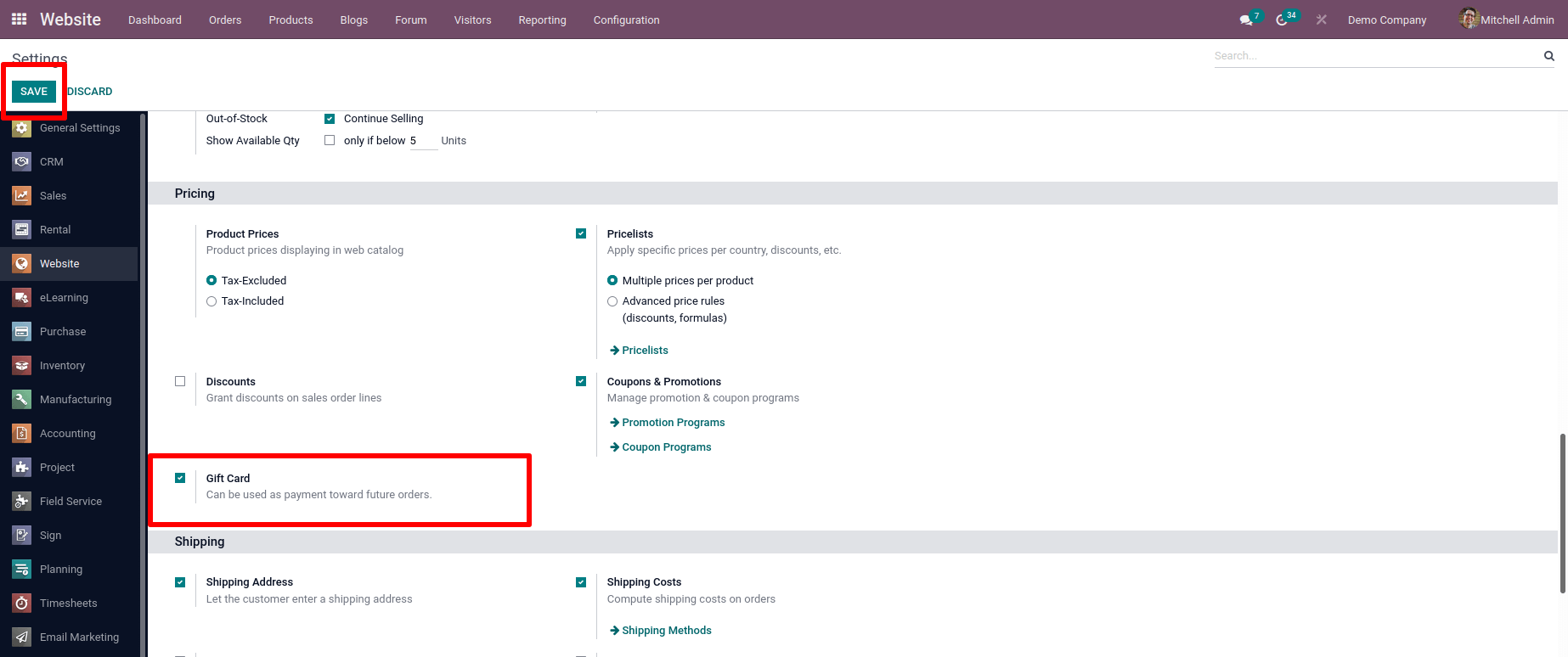
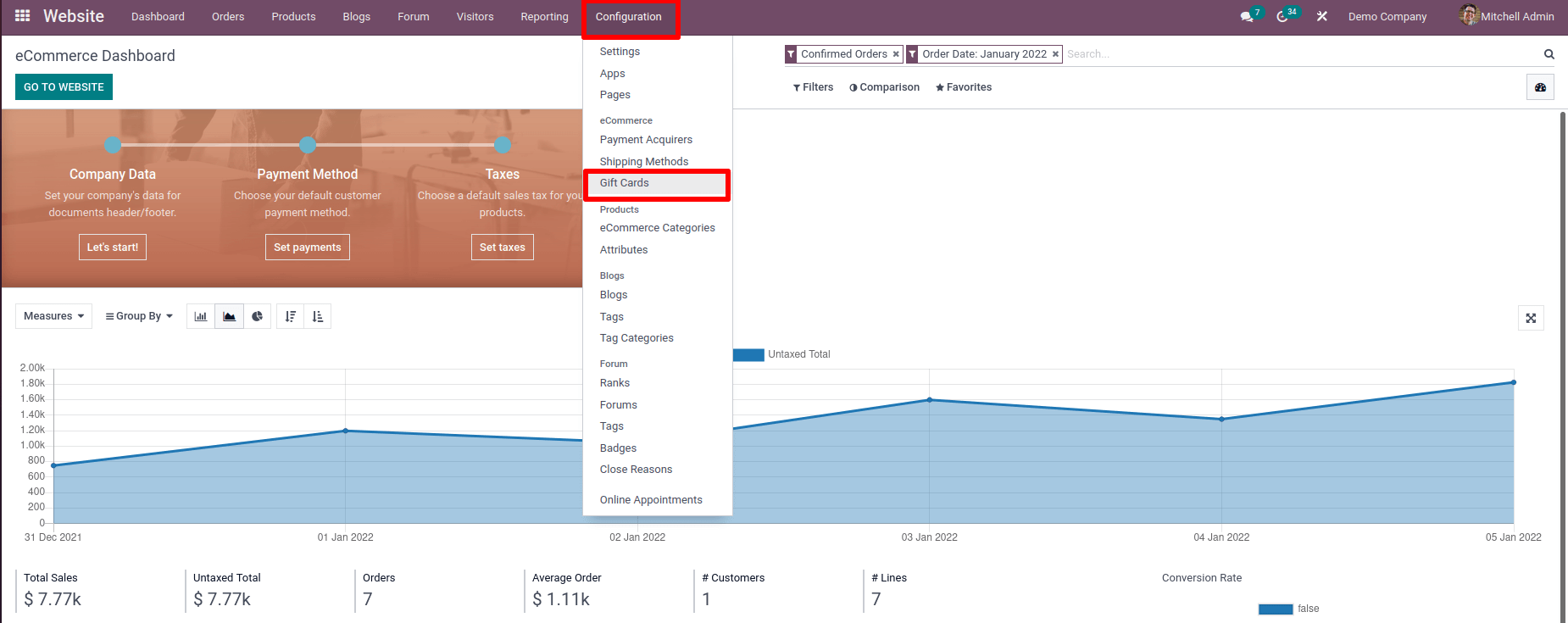
After enabling this function, we have the choice of creating a new gift card. To do so, navigate to the Configuration tab and choose the Gift Card option from the drop-down menu.
Then we can make new gift cards and look at the ones we've previously made. Click the Create button to generate a Gift Card. Then a new window emerges, allowing us to view the details of the gift card. Created on, Expired Date, and other fields are available. The unique code for the gift card may be found there.
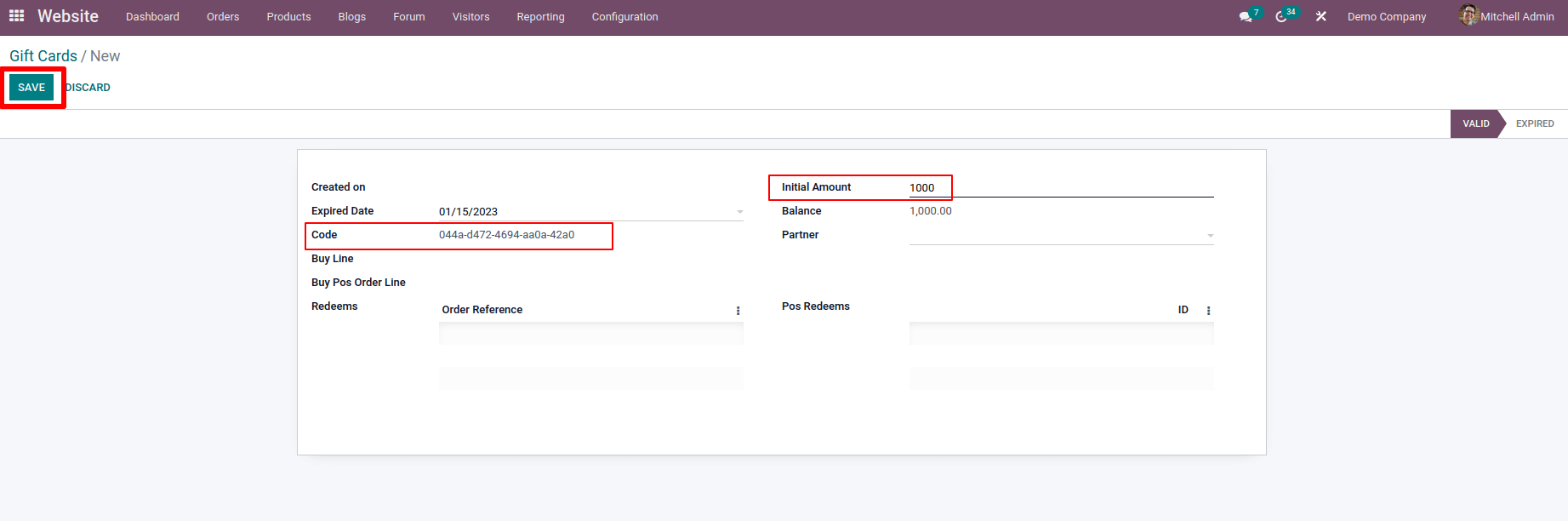
A gift card with an Expiration Date can be given, and the card will be valid until that date. In addition, if we created a gift card that could be used both online and at the point of sale, check the balance of a gift card after it has been used in Balance. So, if we used this gift card to make a purchase, the sales information is stored on the gift card. We can inspect the data of a redeemed gift card separately if we use it at a POS or on the internet.
It is possible to form a partnership. If that field is filled up with a partner, the gift card will only be available to that partner.

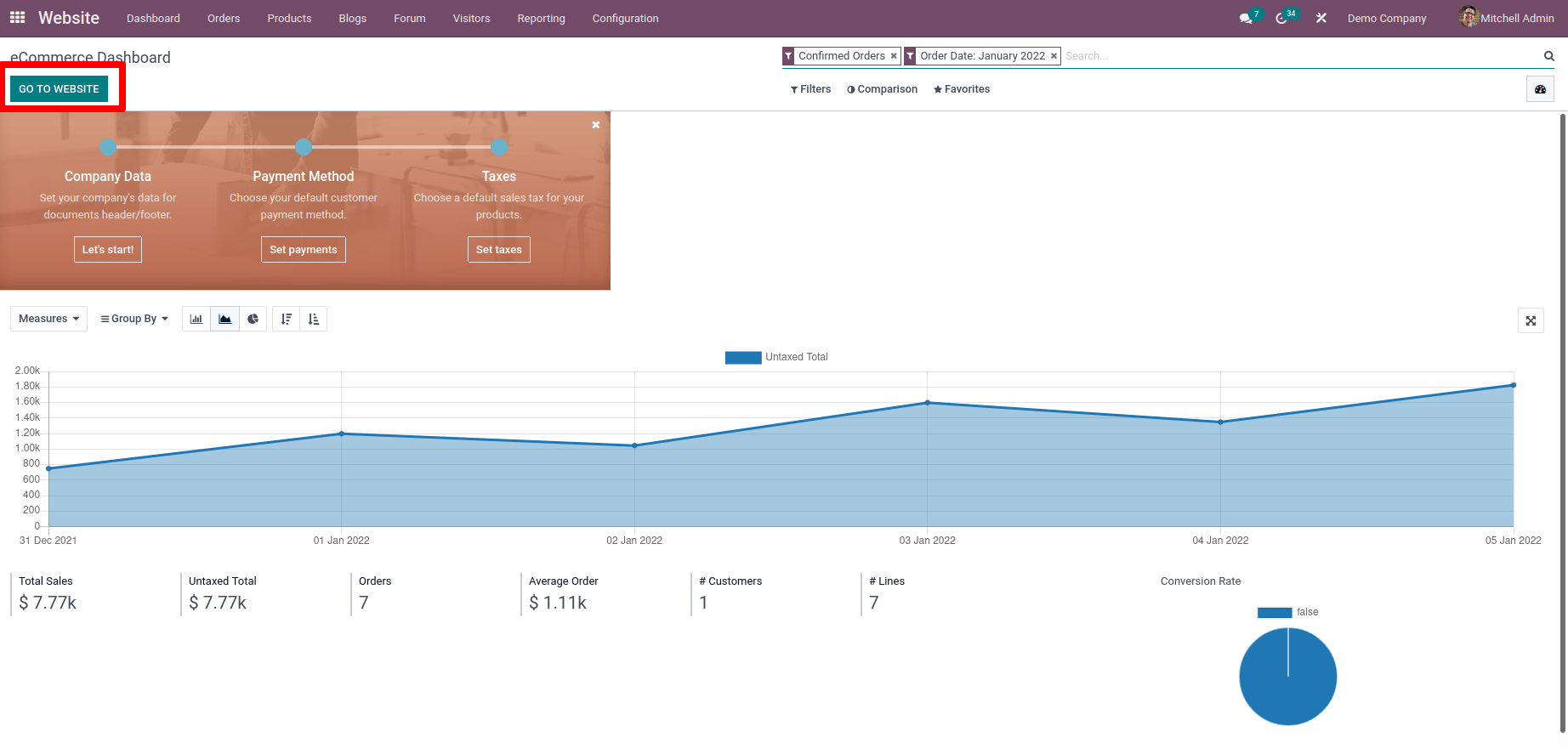
The gift card is created as a result. It is now permissible for us to utilize it on our website. So, let's open the website from the eCommerce Dashboard. On the eCommerce Dashboard, click the Go To Website option. Go To Website > Dashboard > eCommerce Dashboard.
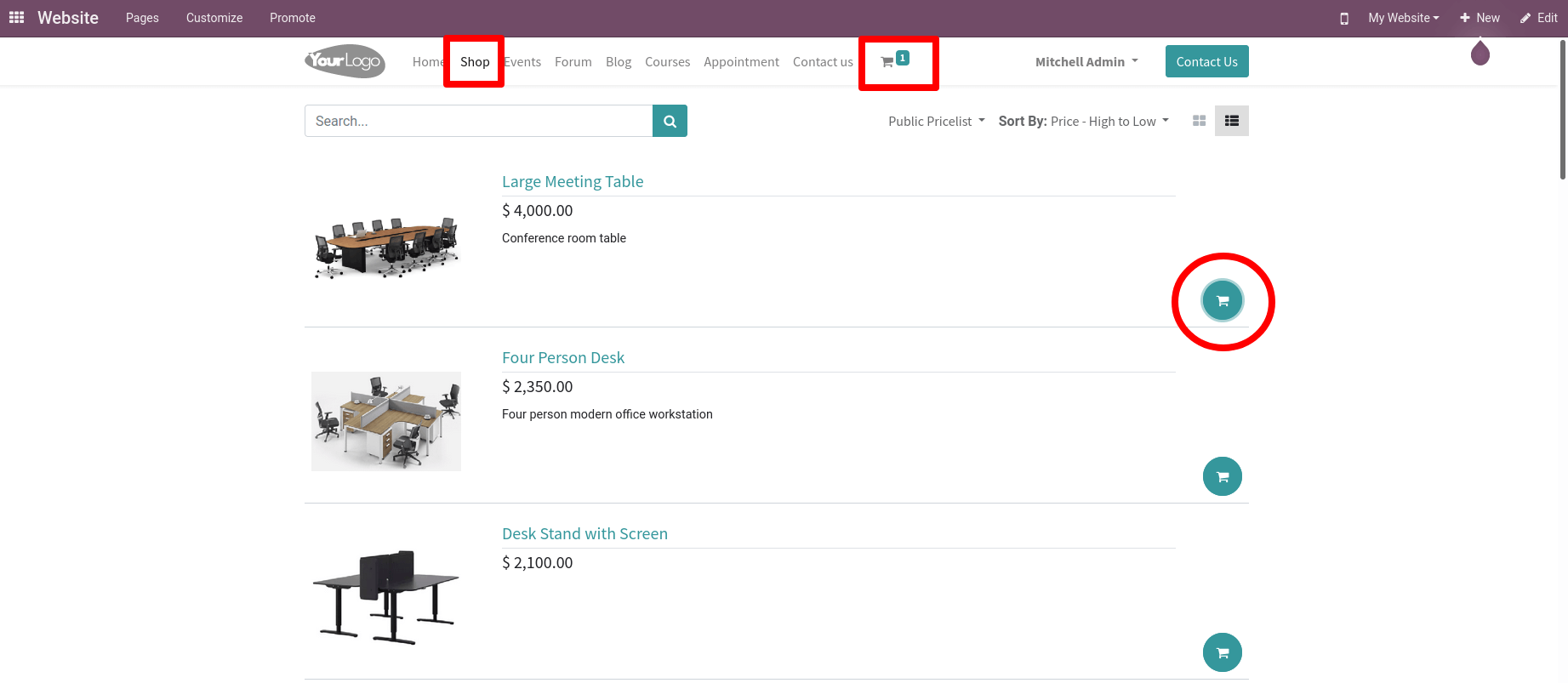
Select the Shop option to see a list of products, then select one from the list and add it to your shopping basket. After adding the product to the cart, the top bar was updated with a single amount.
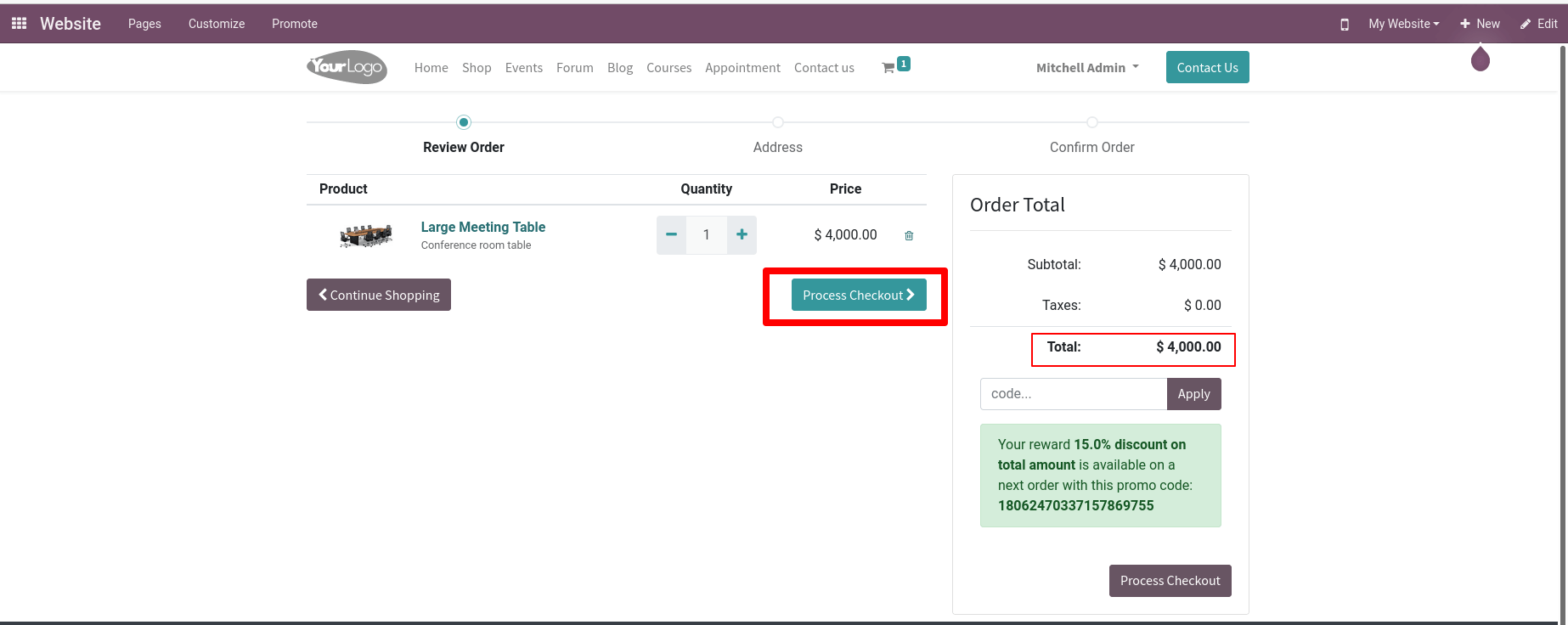
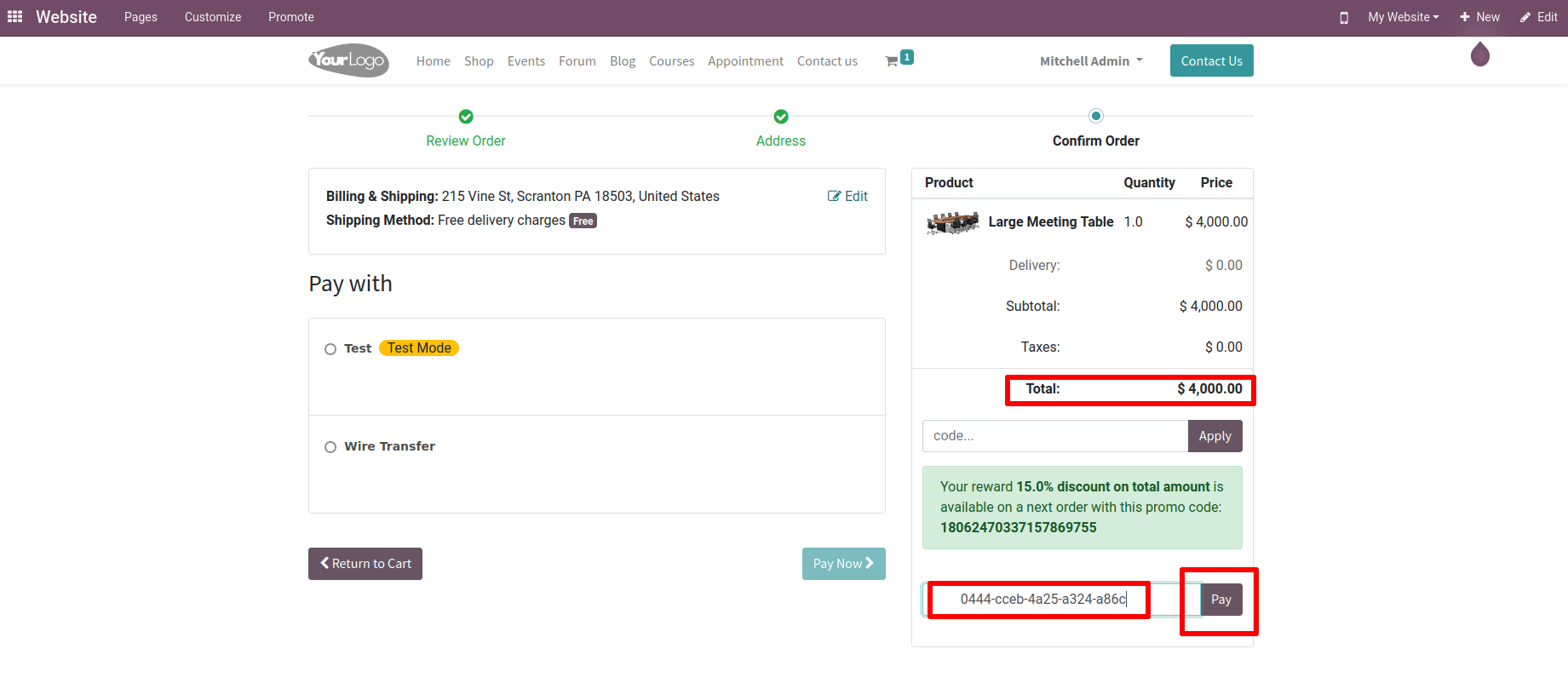
We can see the product we've put to the cart when we open it. Click the Continue Shopping button if we need to sell more things. You'll have to pay for the existing product if you don't. To pay, click the Process Checkout button. The entire sum is 4000, as seen on the right side of the website.
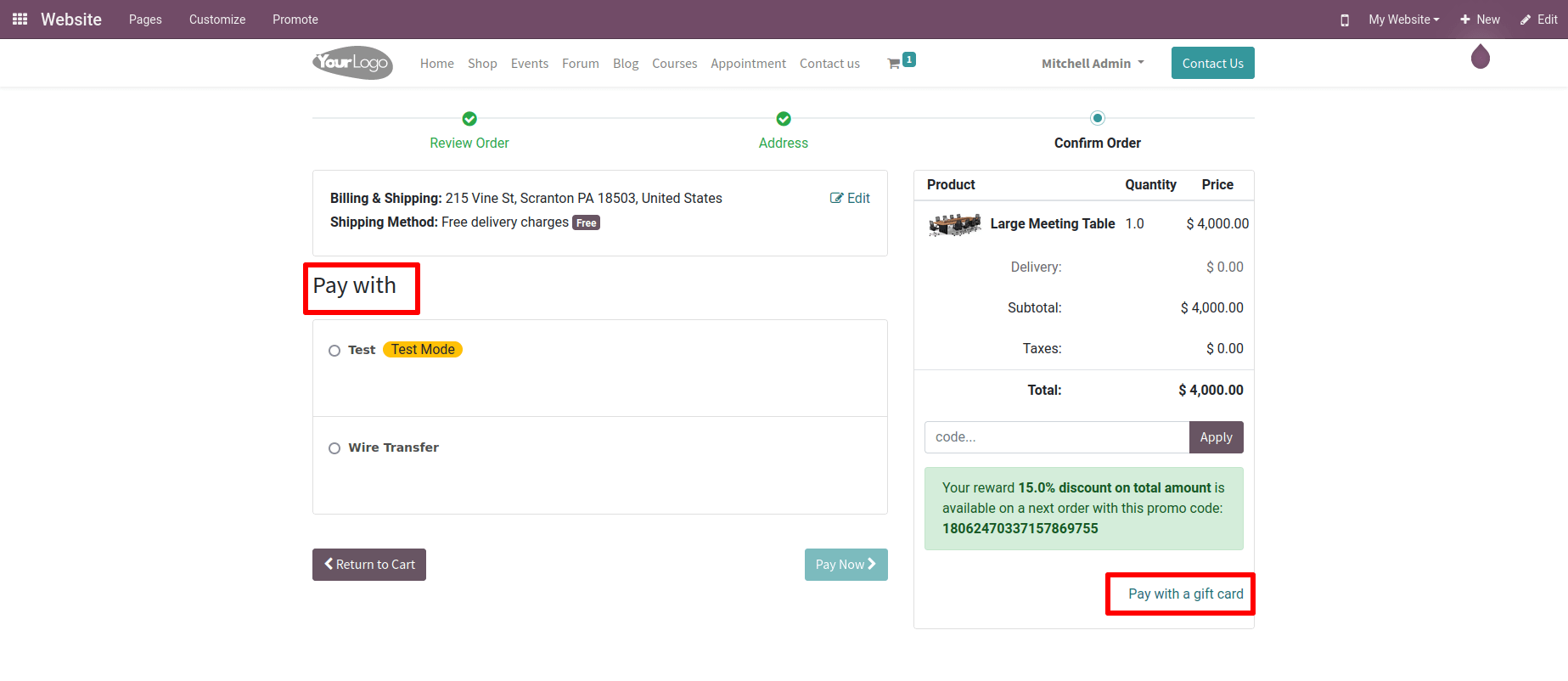
It will send you to a different page. There you will find the Payment Acquirers. Payment acquirers are used for online payments. A Pay with Gift Card option is available on the right side. As a result, we've previously made a gift card that we can use in this situation. By using the gift card, we get a $1,000 discount off the entire price. As a result, choose the option to pay with a gift card.
As a result, there was a space to write the will. After creating the gift card, we copied the Gift Card Barcode. Paste the previously copied code into this box, then click the Pay button.
The gift card is then added as an additional product, and its value is deducted from the total price. The gift card value was 1000 dollars, thus after reducing it, you just want to pay $3000.
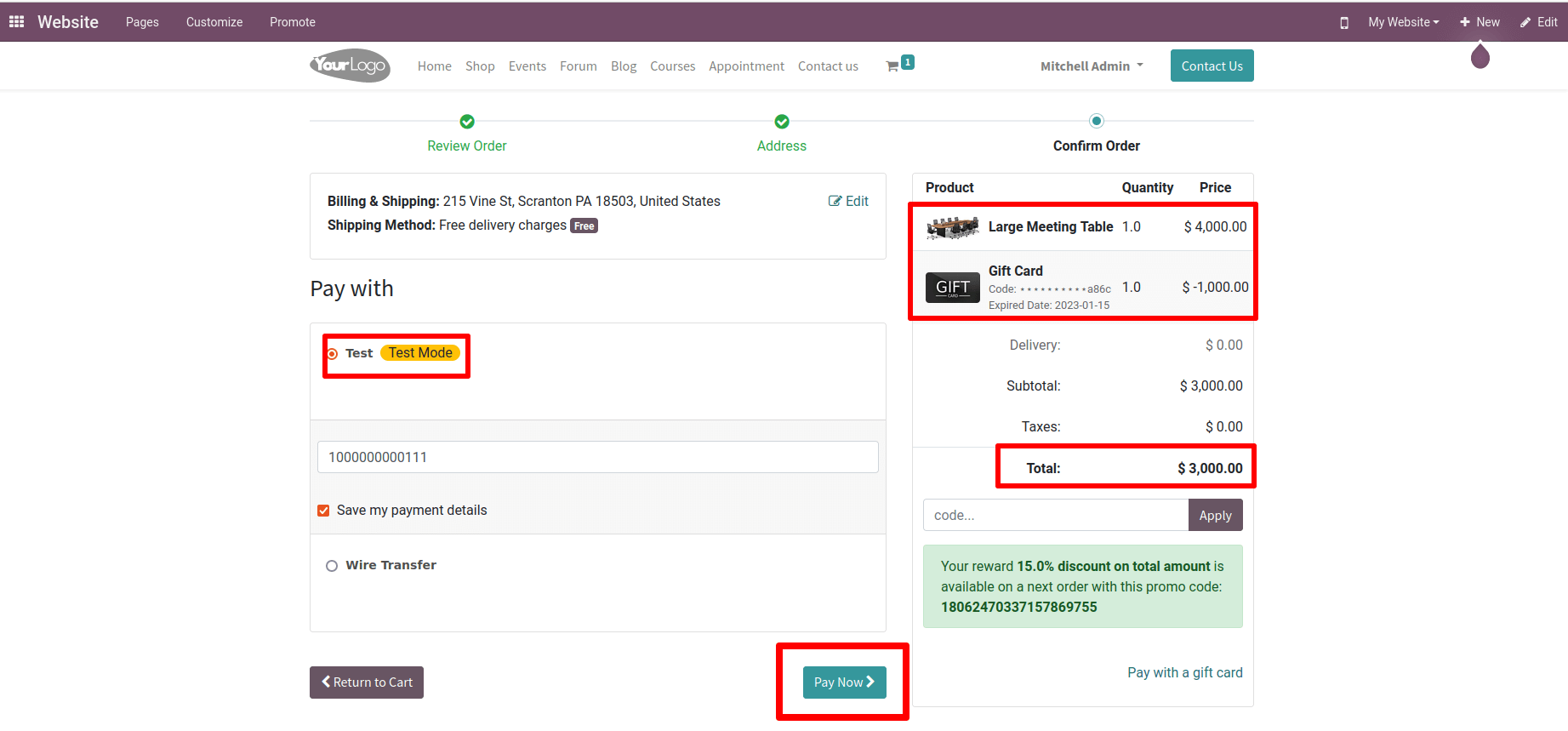
Under the Pay With option, we can see the various Payment Acquirers. Choose one and, if necessary, fill in the spaces with Test Card Information such as the card number.
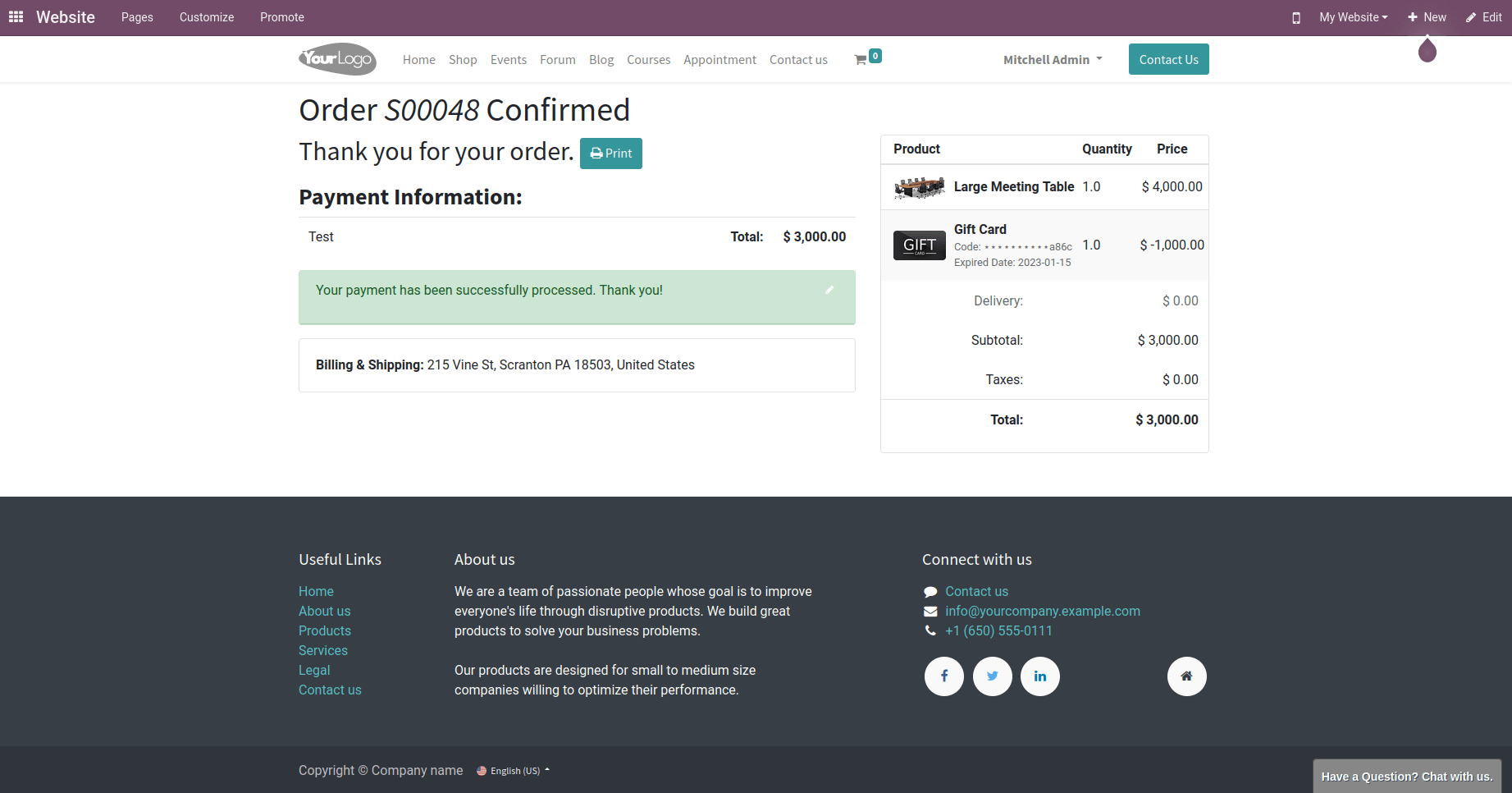
Then, to make a payment, select Pay Now from the drop-down menu. Then we'll be able to see the delivery confirmation, which will include payment details.
The redeem details are received from the gift cart, as previously stated. Return to the back end and select a gift card to show from the configuration tab. If the gift card is still valid, you can use it. The sales order number is updated in this section.
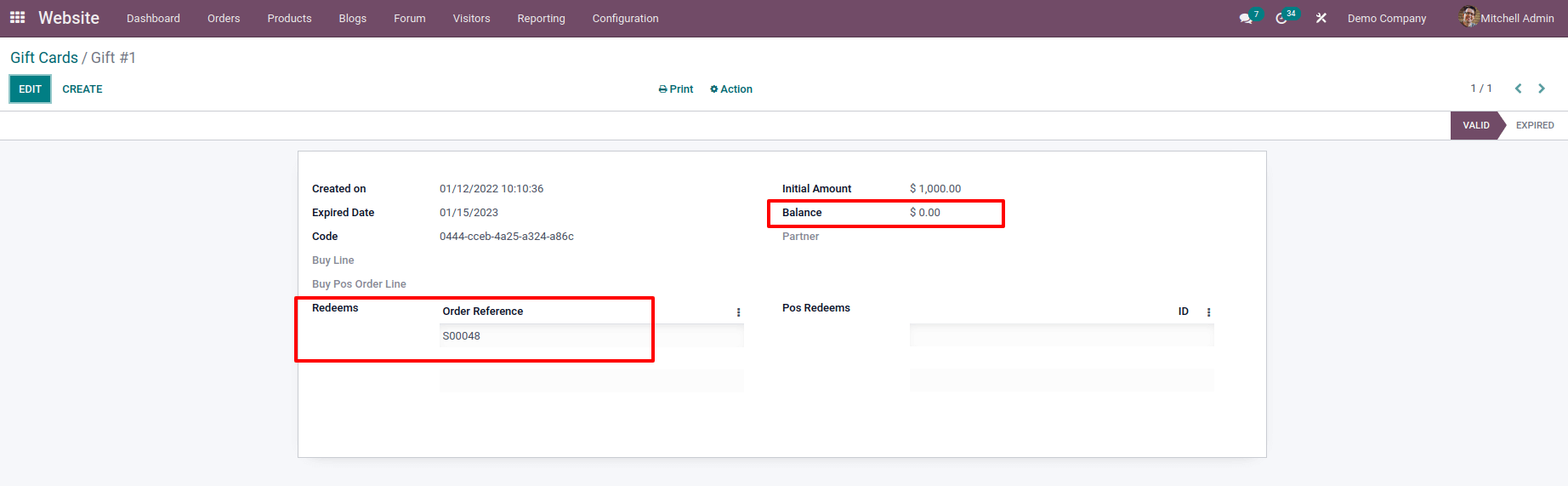
However, due to the fact that we spent the entire amount, there is no balance in this case. We've set the value of this gift card at $1,000 as a starting point. If you don't use the entire money during the transaction, such as $ 200, the remaining $ 800 will be reflected as a balance here. We can then use the gift card again, but just for the remaining sum.
- Presenting a Gift Card at the Point of Sale
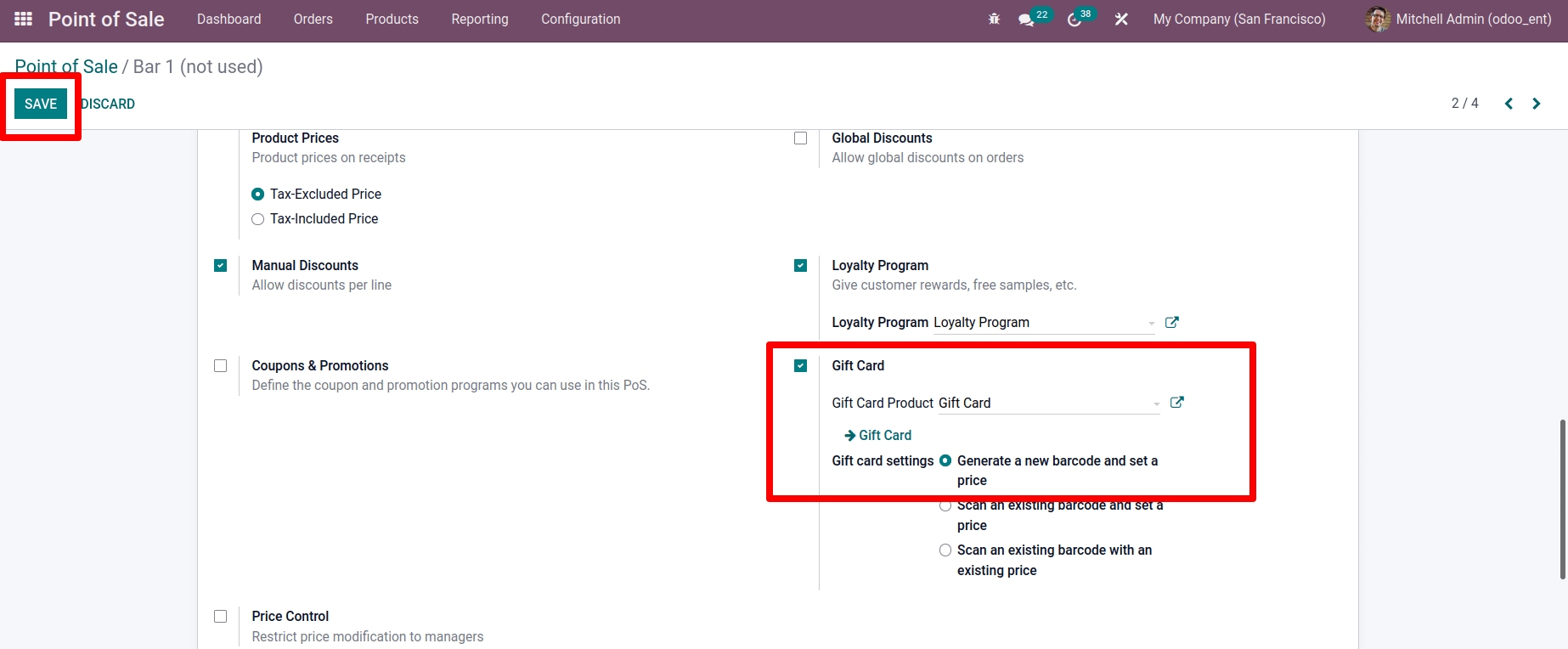
First and foremost, we must set it up in order to have access to Gift Cards at the Point Of Sale (POS). Go to configuration and select the appropriate options for this. After that, enable the Gift Card option and save your settings.
Configuration > Settings > Gift Card > Save
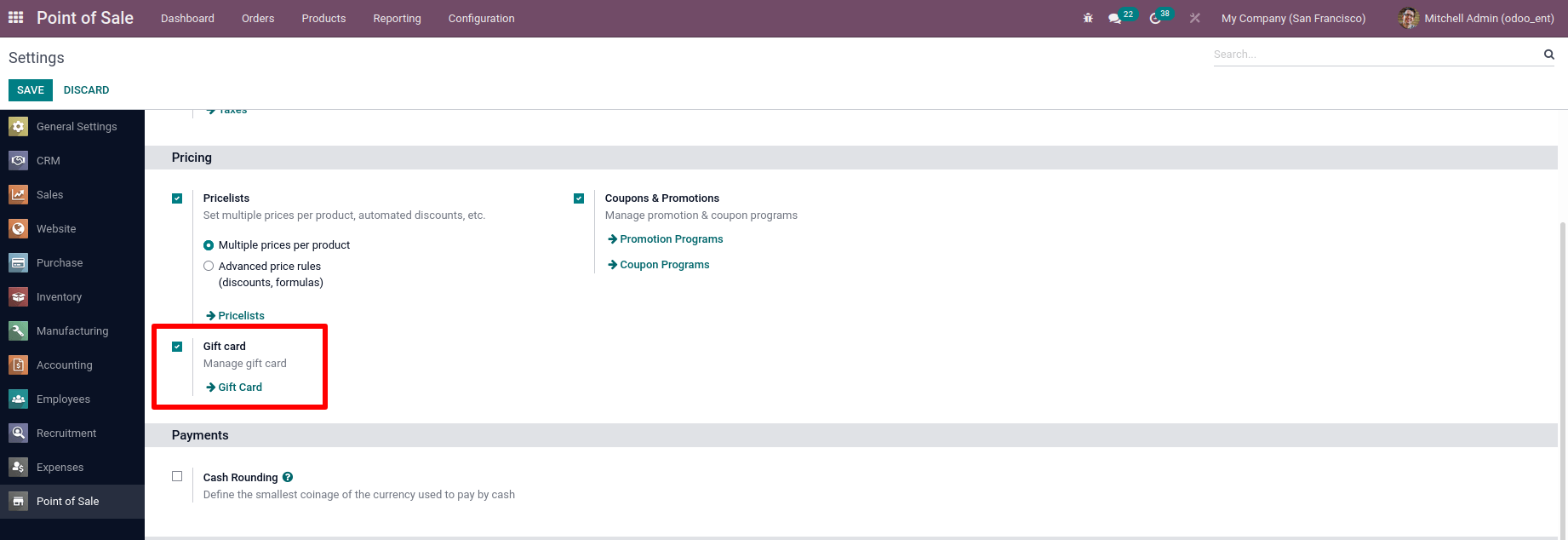
As previously said, we may create a new gift card by going to the product tab and picking the gift card option. All of the gift cards are visible there. That is, the gift card we created on the internet is visible there. We can make a new one by clicking the create button.

To utilize a gift card, we must first set it up in a POS session. To do so, go to the settings of a POS session.
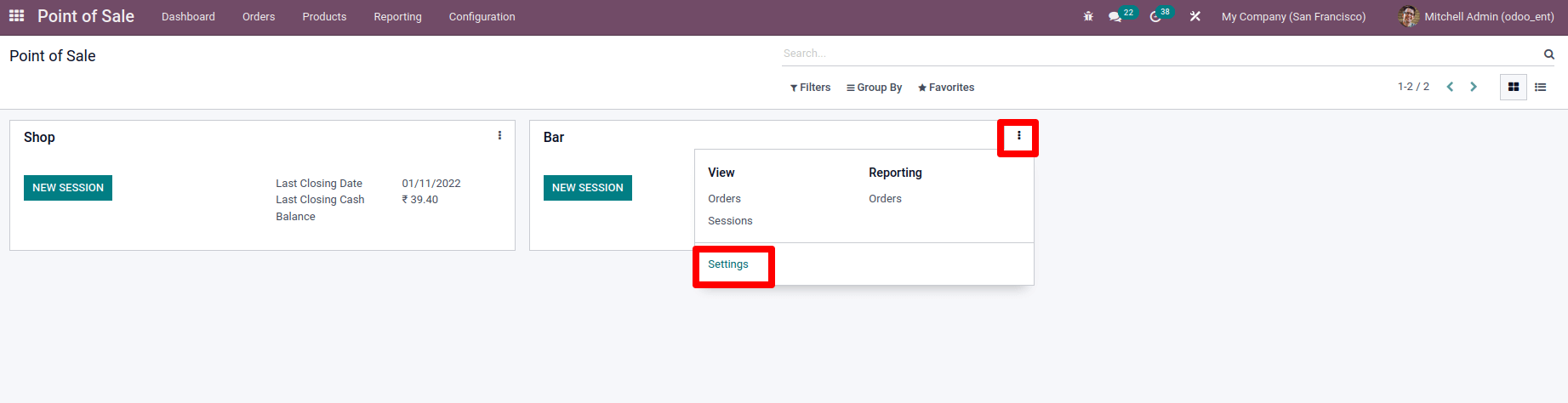
We can enable the option for a gift card there. There are three different kinds of gift cards that can be utilized. Make a new barcode and assign it a price. Scan a barcode and assign a price. Scan a barcode that matches to a price that already exists. We may go over each item individually.
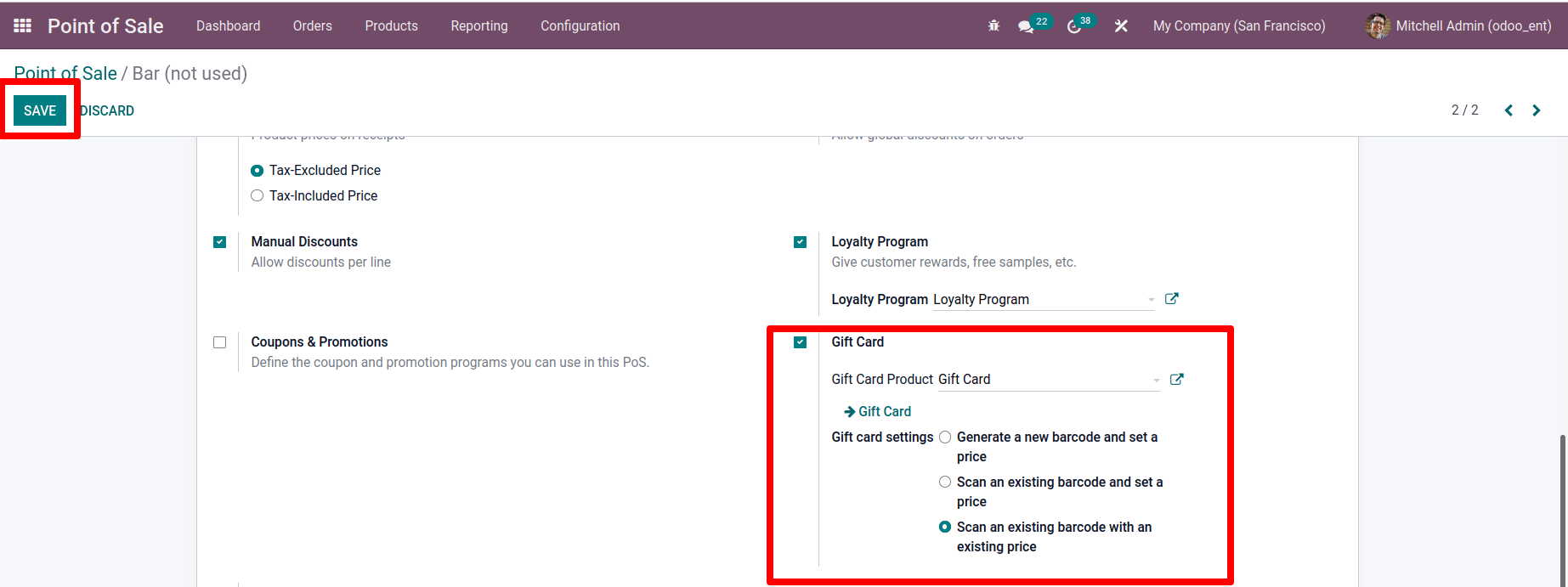
Create a new barcode and assign a price to it.
Select Point Of Sale from the drop-down list under Configuration.
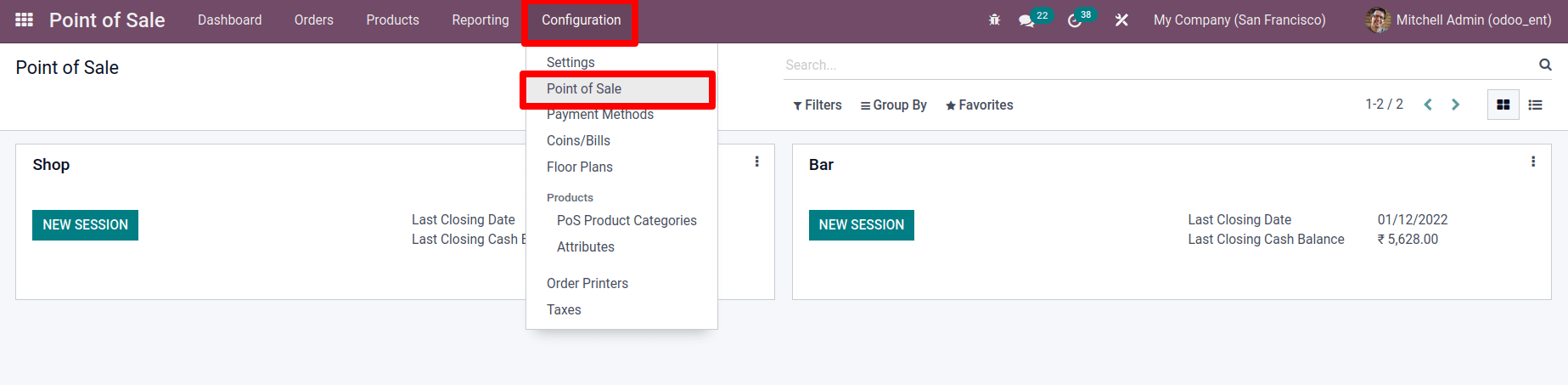
There are already running sessions there. We can create a new one by clicking the Create button.
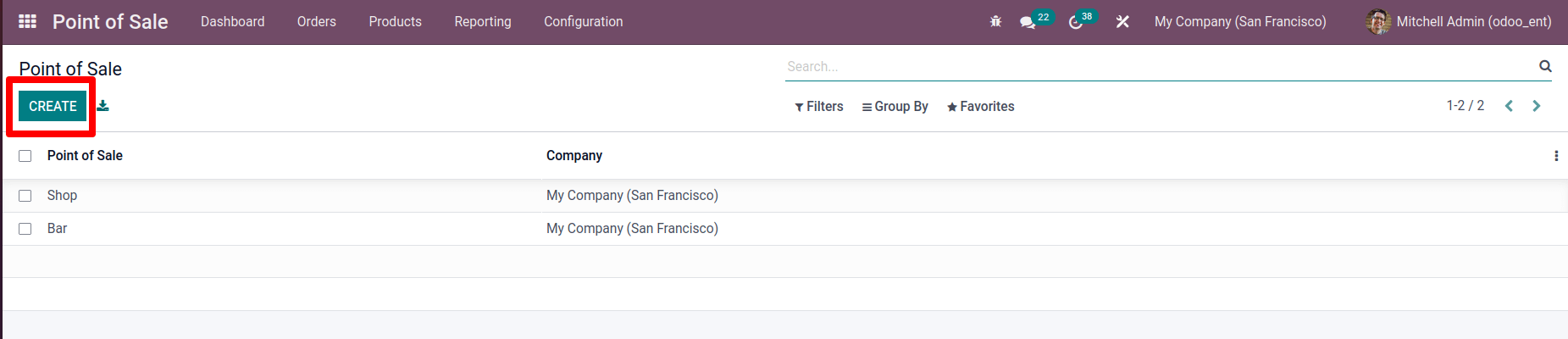
Give the point of sale a name. We may activate gift cards and select the first option, Generate a new barcode and specify a price, from the drop-down menu. Here, update the name to Bar 1 and save the modifications. To begin, we'll create a new bar code and decide on a price for the gift card. We'll utilize it to sell a product to a customer after that.